¶ Overview
The Automod module allows you to make Dyno into your own Moderator! Dyno can keep an eye out for many different things that you may not want in your server, such as banned words, spam, spoilers, and more!
Permissions Check:
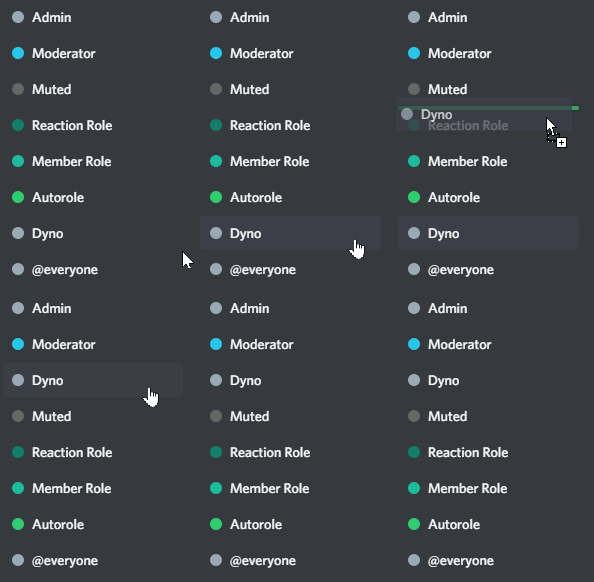
- Make sure Dyno’s role is above the roles of the members you want it to moderate and the
Mutedrole.- Make sure Dyno has the following permissions in your server:
Manage WebhooksManage RolesBan MembersTimeout Members
- Make sure Dyno has the following permissions in all channels:
View ChannelSend MessagesSend Messages in ThreadsManage MessagesRead Message History
¶ How to set up Automod
- Head over to your account and select your server.
- Click the
Modulestab or selectAutomodfrom the dropdown. - Ensure the
Automodmodule is enabled. - Click the
Settingsbutton underneath the Automod module. - Under
Manage Default Settingsselect aDefault Log Channel. Ignored Channelsare channels that Automod will ignore,Ignored Rolesare roles that if a user has they will not trigger Automod.- Select
Create Ruleand give it aRule Name. - Select which filter you’d like to create a rule for. Selecting an option will give a description of what that filter does.
- Edit the
Custom Settingsfor the rule to your liking, then set theActionyou want Dyno to take when that rule is triggered. - After you’ve finished select
Create Ruleto save.
Please note:
Ignored Channelsmeans messages will be ignored in those channels and will not trigger Automod.Ignored Rolesmeans users with these roles will be ignored and will not trigger Automod.- Automod ignores the Server Owner and Administrators, as well as Manager and Moderator Roles
This module may use webhooks for logging. Click here to learn more about webhooks.
¶ Rule Types
When you create a rule, you will select which filter you want to create the rule for. You can also create multiple rules for the same filter and have Dyno do different actions for each one.
- All Caps - Dyno will autodelete messages that contain a certain percentage of capital letters. (Default 70%)
- Bad Words - Detects when a user sends a message containing a certain word/phrase.
- Chat Clearing Newlines - Detects when a user sends a message containing x amount of newlines.
- Duplicate Text - Detects when a message contains repeated text. For example: “aaaaaaaaaaaaaaa” or “word word word word word word word”.
- Character Count - Detects when a message is too long.
- Emoji Spam -Detects when a message contains x amount of emojis.
- Fast Message Spam - Detects when a user sends x amount of messages during a 5 second timespan in a single channel.
- Image Spam - Detects multiple images sent at once or within a time span of 10 seconds.
- Invite Links - Detects when a user sends an invite link.
- Known Phishing Links - Detects when a user sends a known phishing link.
- Links - Detects when a message contains a link. You can select to delete specific links, or delete all links.
- Links Cooldown - Detects when a user sends multiple links within x seconds. This also works across multiple channels.
- Mass Mentions - Mass Mentions detects when a single message contains x number of mentions (different user per mention).
- Mentions Cooldown - Detects when a user sends multiple mentions within 30 seconds.
- Spoilers - Detects text or image spoilers.
- Masked Links - Detects when a user sends a masked link. More info here (that’s a masked link too!).
- Stickers - Detects when a user sends a sticker.
- Sticker Cooldown - Sticker spam detects when multiple stickers are getting sent within 60 seconds.
- Zalgo Text - Detects zalgo text (example of zalgo text: Ȅ̴̂x̴̛̔a̴̎̉m̷̀̐p̵̽̈́l̵̽̍e̷̒͑).
¶ Custom Settings
Each rule has settings you can customize to your liking. Click the help button ❔ next to the setting if provided to find out more about it. Some are listed below.
Banned Words
- You can paste multiple words into the list by separating them with a comma. Eg.
word,word,word- Banned Words (wildcard) - This means that Dyno will look for the word within another word. For example if the word “hi” was banned in wildcard the word “high” would be automodded.
- Banned Words (exact) - This means that Dyno will only look for that exact word within a message.
Links
- You do not need to add
http://orhttps://to the beginning of a link.- You do not need to add a link for every single sub-domain. For example, if you add “dyno.gg”, all “dyno.gg/” links would be detected.
- Delete specific links - Use this option if you only want to delete certain links.
- Delete all links - Use this option if you want to delete ALL links. (You can still allow certain links with this setting.)
¶ Actions
These are the actions Dyno can take upon a user triggering a rule.
- Warn - Gives the user a verbal warning in chat when they trigger the rule.
- Delete - Deletes the message that triggered the rule.
- Auto Mute - Will mute the user for triggering the rule x amount of times according to # of violations set.
- Auto Ban - Will ban the user for triggering the rule x amount of times according to # of violations set.
- Instant Mute - Will mute the user immediately after triggering the rule.
- Instant Ban - Will ban the user immediately after triggering the rule.
The
Warnaction for rules in Automod only sends a verbal warning in the channel that automatically deletes after a few seconds (for example, setting Warn as an Action for a rule with the Banned Words filter will respond with{user}, Watch your language.). It is not a?warnand will not dm the user, be logged in the Modlog channel, appear on ?warnings or ?modlogs, or go toward any Autopunish settings.
Automod violations expire after 5 minutes.
¶ Permissions
You can also set custom permissions per rule.
- Affected Roles - The user must have these roles to be affected by the rule.
- Affected Channels - The message must be sent in these channels to be affected by the rule.
- Ignored Roles - The rule will ignore any user who has these roles.
- Ignored Channels - The rule will ignore messages sent in these channels.
Don’t add both
Affected RolesandIgnored Rolesor bothAffected ChannelsandIgnored Channels. If you add an Affected Role, it will automatically ignore all other roles and If you add an Affected Channel, it will automatically ignore all other channels and vice versa.
¶ Options
You can also set custom options per rule.
- Log Channel - Set a custom log channel Dyno will use for the rule.
- Custom Response - The custom reply Dyno will make when the rule is triggered.
These are Standard Premium features.
Click here to upgrade to Premium!
¶ Troubleshooting Steps
- Make sure Dyno has the permissions specified here.
- Run
?diagnose Automod(case-sensitive). If the module is disabled, enable it on the dashboard or by running the?module automodcommand. - Make sure the user triggering Automod is not a Dyno Moderator or Manager, as these users are ignored from Automod. To check if Dyno views the user as a moderator or manager, run the ?whois command on them and check if Dyno labels them as a
Server Moderator,Server Manager,Server Admin, orServer Ownerunder Acknowledgements. - Make sure the user triggering Automod does not have an
Allowed/Ignored Roleand is not testing it in anAllowed/Ignored Channel. These can be set on the dashboard underManage Default Settingsfor Automod as well as in thePermissionssection of individual rules. - If only certain rules are not working, Dyno may not view the message being sent as a violation of the rule. For more information on what each filter does, click here.