¶ Overview
The Tickets module allows you to setup support tickets with dashboard-deployed panel, private channels, transcripts, and staff actions.
Permissions Check:
- Make sure Dyno has these permissions in your tickets categories:
View ChannelSend MessagesEmbed LinksAttach FilesManage ChannelsManage RolesRead Message HistoryMention @everyone, @here and All RolesSend Messages in ThreadsCreate Private ThreadsLimits to keep in mind:
- Non-Premium servers can have a max of 1 panel. Upgrade to
Premium to get more!
¶ How to setup Tickets
¶ Single Panel
Send one message that will have one button to open a ticket.
- Head over to your account and select your server.
- Click on the
Modulestab. - Ensure the
Ticketsmodule is enabled. - Click the
Settingsbutton underneath the Tickets module. - Enter a
Panel Namefor your ticket panel and click onNew Panel. The Panel Name will be used for the ticket channel names on Discord. For example naming it “Player Appeals”, will result in “player-appeals-1” channel names. - Customize the message that will be posted on Discord (which will include your “Create ticket” button), and then send it through the
Send messagebutton. Skip this step if you plan on using this panel on a Linked Panel menu. - Expand the
Ticket Settingssection, and optionally modify the amount of open tickets a user can have at a time (requires Standard Premium), and set the roles that will have access to tickets and be able to interact with the “Staff Action Row” buttons. You can also automatically use the Moderator Roles you have configured in the Moderation module. - Expand the
Ticket Routingsection and set yourOpen tickets category(the category where new tickets will go in),Resolved tickets category(the category where tickets will go after using the “Resolve” button),Closed tickets category(the category where closed tickets will go in when closed through the “Close” button) and theTranscript log channel(the channel where ticket transcripts will be posted in). All 4 of these must be set! - Optionally, expand the
Ticket Intake Formsection and modify the ticket creation flow. - Lastly, once you’re done customizing your panel, go to the top of the module and click on
Send messageto send your panel on Discord! If you skipped step 6, only click on theSave changesbutton, since we don’t want to send this panel’s message on Discord yet.
¶ Linked Panel
Linked Panels are a Standard Premium feature.
Combine multiple panels into a single message.
- Head over to your account and select your server.
- Click on the
Modulestab. - Ensure the
Ticketsmodule is enabled. - Click the
Settingsbutton underneath the Tickets module. - Create and save all of the panels you want without sending them on Discord.
- Select the panel whose button you want to appear first on the final message on Discord, and in the
Linked panelsoption, select the panels you created previously. The order in which their “Create ticket” buttons will appear on the final Discord message is determined by the way you order them here, starting with this panel’s button!
Ensure you have fully configured all options under the
Ticket Routingsection for all of your panels, including your current one!
- Head to the top of the module, and now you can customize the
Panel Message. This message will include the buttons from all the panels you have linked to it. - Once you’re done, click on
Send message, and you’re done!
One linked panel can have up to 4 panels.
Hands-on Example
As an example for a Linked Panel, let's recreate the following message:
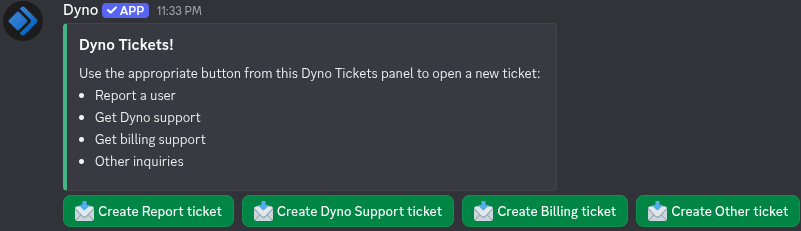
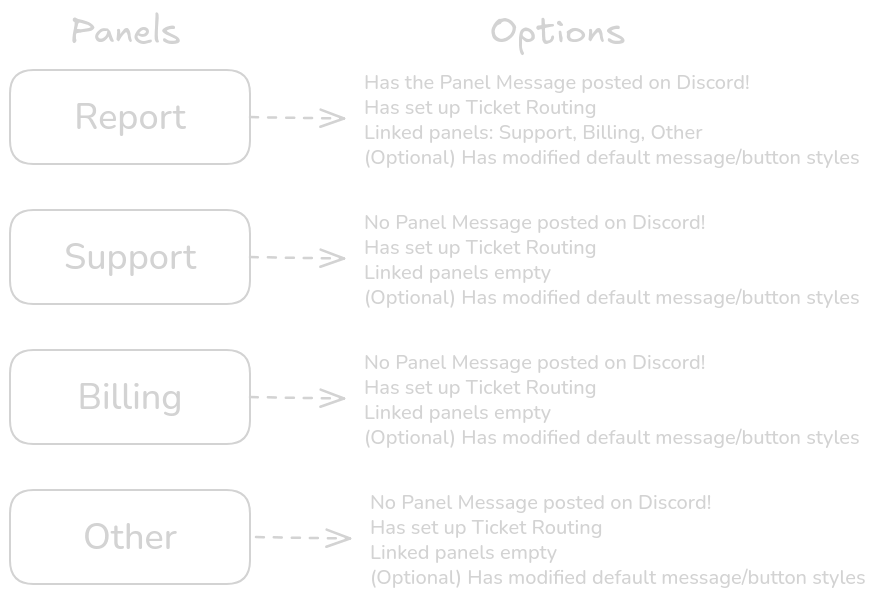
To recreate that setup, the panels on your dashboard should have the following general structure and options:
¶ Ticket Intake Form
Through the Customize ticket form option you can control how users describe their issues and customize the specific information you want to request from them before opening the ticket.
With the option enabled, you can configure a modal/form users fill out after clicking on the Create Ticket button, before opening the ticket.
Here are all of the available options you can edit for the form:
¶ General
| Option | Description |
|---|---|
| Form Header | Title of the modal. Max 45 characters. |
¶ Category Dropdown
Lets the user pick a sub-category for the ticket. Maps to the {subcategory} variable. If not provided, defaults to —.
| Option | Description |
|---|---|
| Show sub-category dropdown | Toggle that enables/disables the dropdown question. |
| Placeholder | Placeholder shown on the category field in the modal. Max 100 characters. |
| Categories | List of category options. Up to 20 categories, max 100 characters each. |
¶ Subject Field
Short summary of the ticket reason. Maps to the {reason} variable. If not provided, defaults to —.
| Option | Description |
|---|---|
| Show subject field | Toggle that enables/disables this question. |
| Field label | The label shown in the modal. Max 45 characters. |
| Help text | Context hint shown below the label. Max 100 characters. |
| Placeholder | Placeholder text shown before the user types. Max 100 characters. |
| Require subject field | Makes the field optional when off. |
| Min length | Enforces a minimum character limit for this field. |
| Max length | Enforces a maximum character limit for this field. |
| Input style | Single line creates a small one-line field; Paragraph creates a multi-line field. This is visual only - it does not enforce additional limits. |
¶ Details Field
Detailed explanation of the ticket reason. Maps to the {description} variable. If not provided, defaults to —.
| Option | Description |
|---|---|
| Show description field | Toggle that enables/disables this question. |
| Description field label | The label shown in the modal. Max 45 characters. |
| Help text under label | Context hint shown below the label. Max 100 characters. |
| Placeholder | Placeholder text shown before the user types. Max 100 characters. |
| Require details field | Makes the field optional when off. |
| Min length | Enforces a minimum character limit for this field. |
| Max length | Enforces a maximum character limit for this field. |
| Input style | Single line creates a small one-line field; Paragraph creates a multi-line field. This is visual only - it does not enforce additional limits. |
With Premium, you can also add up to 3 extra custom fields of your choice, with the same options as the subject and details!
Click here to see a preview of the form, using the default values!
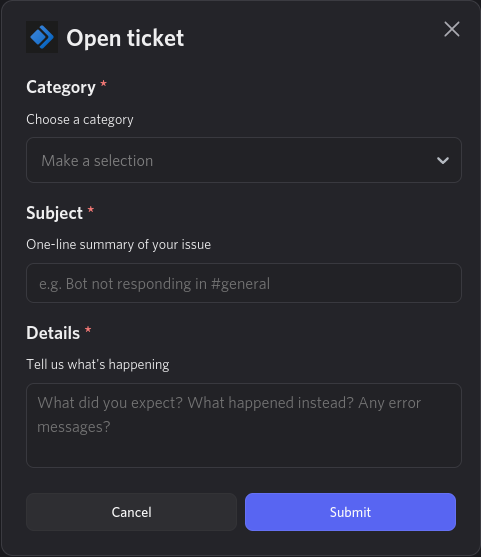
With the option disabled, you can configure the following values that will be used for all tickets created through that panel. When a user clicks on the Create Ticket button, a ticket will be instantly created.
| Option | Description |
|---|---|
| Default reason | Short summary of the reason the ticket was created. This will be the value of the {reason} variable, where applicable, or — when not set. |
| Default description | More detailed description why the ticket was created. This will be the value of the {description} variable, where applicable, or — when not set. |
| Category value | Optional sub-category of the created ticket. This will be the value of the {subcategory} variable, where applicable, or — when not set. |
¶ Options
¶ Ticket Options
| Option | Description |
|---|---|
| Ticket channel name | Template for the Discord channel name created when a ticket is opened. Maximum length is 100 characters. If the name exceeds 100 characters, it will be cut automatically. See the available variables here. |
| Max open tickets per user | The number of open tickets a user can have at a time. The default is 1. |
| Staff Permissions |
|
The “Max open tickets per user” option is a Standard Premium feature.
¶ Ticket Routing
Here you can change the Ticket types, from Channel to Private Threads. This will affect where/how new tickets will be created and then handled after closing or resolving them.
Conceptually, the difference between Resolving and Closing a ticket comes down to the outcome. A Resolved ticket had a genuine issue that was addressed and fixed. A Closed ticket had no valid resolution; it was dismissed because it didn’t meet your panel’s criteria (e.g. accidental, spam, or out of scope).
With this option selected, new tickets will get created as normal channels in the category of your choice.
| Option | Description |
|---|---|
| Open tickets category | The category where new tickets will go in. |
| Resolved tickets category | The category where tickets will go to after closing them through the "Resolve" button. Alternatively, you can also select Delete ticket instead. |
| Closed tickets category | The category where tickets will go to after closing them through the "Close" button. Alternatively, you can also select Delete ticket instead. |
| Transcript log channel | The channel where ticket transcripts will be posted in. This happens after resolving/closing a ticket. |
With this option selected, new threads will be created as Private Threads in the channel of your choice. When closed/resolved, they will get locked and archived.
This is a Standard Premium feature.
| Option | Description |
|---|---|
| Thread Channel | The channel where the private threads will be created in. |
| Transcript log channel | The channel where ticket transcripts will be posted in. This happens after resolving/closing a ticket. |
Due to how private thread permissions work, the
Mention roles when a ticket is openedticket option will always be enabled when using threads.
¶ How to edit default in-ticket messages
This is a Standard Premium feature.
Customize the automated messages and embeds sent by Dyno during different stages of a ticket’s lifecycle.
- Follow steps 1-4 to get to your Tickets module page.
- Once you’re there, select the panel whose in-ticket messages you want to edit.
- Expand the
Ticket Message Overridessection. - From the dropdown, select the type of message you want to edit.
- After you’re done, don’t forget to Save your changes at the top of the module!
| Message | Description | Supported Variables |
|---|---|---|
| First message in new ticket | The in-ticket message that includes the user-submitted form when opening the ticket, if enabled, otherwise the default reason(s) set. | {username}, {userid}, {usermention}, {useravatar}, {reason}, {description}, {field1}, {field2}, {field3}, {field4}, {field5}, {fields}, {subcategory}, {tickettype}, {channel}, {channelid}, {guild}, {guildicon}, {guildid} |
| Staff action row | The in-ticket message that includes the Resolve and Close buttons. | {username}, {userid}, {usermention}, {useravatar}, {reason}, {description}, {subcategory}, {tickettype}, {channel}, {channelid}, {guild}, {guildicon}, {guildid} |
| Channel message when ticket is resolved | The in-ticket message when the ticket is closed through the Close button, inclduing the staff closing reason. | {username}, {userid}, {usermention}, {useravatar}, {staffreason}, {moderator}, {moderatorid}, {moderatoravatar}, {channel}, {channelid}, {guild}, {guildid}, {guildicon} |
| Channel message when ticket is closed | The in-ticket message when the ticket is closed through the Resolve button, inclduing the staff closing reason. | {username}, {userid}, {usermention}, {useravatar}, {staffreason}, {moderator}, {moderatorid}, {moderatoravatar}, {channel}, {channelid}, {guild}, {guildid}, {guildicon} |
| Transcript channel notice | The message posted in your transcript log channel. This will automatically include a text file containing the transcript. | {username}, {userid}, {usermention}, {useravatar}, {moderator}, {moderatorid}, {moderatoravatar}, {channel}, {channelid}, {guild}, {guildid}, {guildicon}, {filename}, {action} |
If you’re looking to edit the Panel Message itself, scroll up to the
Panel Messagesection instead.
¶ How to edit the default panel/in-ticket buttons
This is a Premium feature.
Customize the labels, colors, and emojis for the primary buttons your members and staff interact with.
- Follow steps 1-4 to get to your Tickets module page.
- Once you’re there, select the panel whose button messages you want to edit.
- Expand the
Button Stylessection and edit the button(s) you want. - After you’re done, don’t forget to Save your changes at the top of the module!
If you also modified the
Open Ticketbutton, make sure to update the Panel Message as well through theSend messagebutton at the top of the module!
¶ Tickets Variables
¶ Ticket Channel Name
{ticketnumber}- Sequential ticket number{panelName}- Ticket panel name{username}- Opener’s username{userid}- Opener’s user ID{reason}- Subject field from the form{subcategory}- Selected category
¶ In-ticket Message
{username}- Ticket opener’s Discord username.{userid}- Ticket opener’s user ID.{usermention}- Mention of the ticket opener.{useravatar}- Ticket opener avatar URL.{reason}- Short reason from the open-ticket form.{description}- Long description from the open-ticket form.{field1}- Answer to the first open-ticket form field. Usually equivalent to{reason}.{field2}- Answer to the second open-ticket form field. Usually equivalent to{description}.{field3}- Answer to the third open-ticket form field. This is available when using Extra form fields.{field4}- Answer to the fourth open-ticket form field. This is available when using Extra form fields.{field5}- Answer to the fifth open-ticket form field. This is available when using Extra form fields.{fields}- All submitted open-ticket form fields and answers, formatted as a list and separated by newlines. For example:
Subject: Can’t download new game update
Details: When I try downloading the game’s new update I get a weird error
Extra Info: This is regarding version 420.69.1{subcategory}- Sub-category label chosen when opening the ticket.{tickettype}- Fixed channel slug used in the ticket name (ticket).{staffreason}- Reason entered by staff when resolving or closing the ticket.{moderator}- Staff member’s username (resolved / closed messages).{moderatorid}- Staff member’s user ID.{moderatoravatar}- Moderator avatar URL.{channel}- Ticket channel as a mention (<#…>).{channelid}- Ticket channel ID.{guild}- Server name.{guildid}- Server (guild) ID.{guildicon}- Server icon URL.{filename}- Transcript file name (transcript channel notice).{action}- Action label, for example Resolved or Closed (transcript channel notice).
Depending on the message type, not all variables will work. Refer to the available variables per message type to ensure you select the ones that work.
¶ Troubleshooting Steps
- Make sure Dyno has the permissions specified here.
- If you have customized any of the default messages, ensure all message including an embed with an image, end in a valid file extension such as
.pngor.gif.