The Announcements module allows you to set up Join, Leave or Ban messages. When a member joins/leaves/is banned, these messages will be automatically sent into your selected “Announcement Channel”.
Permissions Check
- Make sure Dyno has these permissions in your Announcement channel:
View ChannelSend MessagesEmbed Links
Modules Tab.Announcements module is enabled.Settings button underneath the module.Announcement Channel where Dyno should send the messages.Update button after typing your message to save it. Once that’s done, you’re all set!For more information on configuring embeds, visit this page.
Please note:
- You must select a channel and
Enable Join Messages, even when you’re using the DM option.- Be aware that Dyno ignores bots. If a bot joins, it will not be announced.
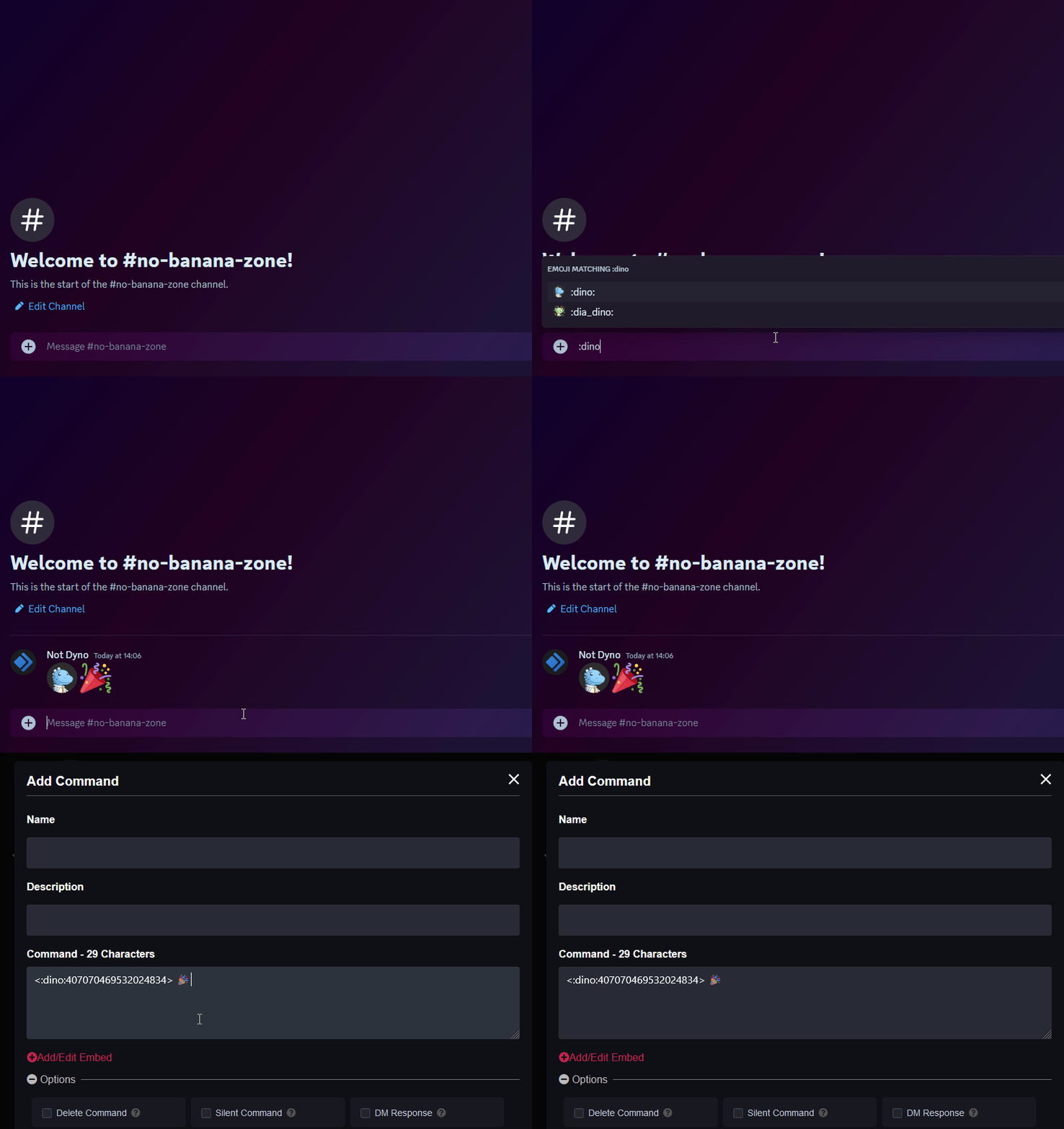
{user} - The user that has joined. For example, Welcome {user}!{avatar} - The avatar of the user. For example, Have a look at {username} avatar! {avatar}{username} - The username of the user. For example, Hello {username}!{server} - The server’s name{@user} - Mention a user by their username, replace “user” with their username. For example, {@Nooblance}{&role} - Mention a role by name, replace “role” with the role name. For example, {&Gamers}, We're streaming now!{#channel} - A channel link, replace “channel” with the name of the channel you want to link. For example, Use {#testing} for all bot testing{everyone} - Mentions @everyone{here} - Mentions @hereIf you’re looking to add custom emojis to your message follow this guide! Just keep in mind Dyno needs to be in the server where that emoji is from.
Please note:
- Please keep in mind that Dyno will mention roles, but will not ping them currently due to the feature being disabled. This functionality will be added back in the future however.
- The
{user}variable will display the username instead of mentioning the user since the ping will not resolve anymore (it will show as @unknown-user)
| Command (click for more info) |
Description |
|---|---|
| /announce | Send an announcement using the bot. Optionally also ping a role, @everyone, or @here. |
These commands will not work if the Announcement module is disabled.
/diagnose command_or_module:announcements command and make sure the module is enabled. If it is not, run /module module:announcements or enable it on the dashboard.Announcement Channel set.Allow direct messages from server members option in User Settings > Privacy & Safety enabled. Otherwise, Dyno will not be able to DM them.Enable Join Messages enabled and an Announcement Channel set..png or .gif. An easy way to get a valid link is to upload the image to Discord, right click it (or tap and hold on mobile), and select Copy Image Link.