The Auto Message module allows you to make Dyno send a specific message into a channel on a set interval. Every time the interval passes, Dyno will send the message into the selected channel.
Permissions Check:
- Make sure Dyno has the following permissions in your Auto Message channel(s):
Manage WebhooksView ChannelSend MessagesEmbed LinksLimits to keep in mind:
- Non-Premium servers can have a max of 1 auto message.
- Non-Premium servers can only set an interval between 1 hour and 3 days (72 hours).
Modules tab.Auto Message module is enabled.Settings button underneath the Auto Message module.Create Automessage button to begin creating your message.Repeating or One Time.Repeating) Select the interval for when you want the message to be posted.Save Message and you’re all set!Extra Info:
- This module uses webhooks. Visit this page to learn more about webhooks.
- For more information on configuring embeds, vist this page.
- While there are no variables available in Automessage, you can use IDs to mention users, roles, and/or channels. For more information on how to mention using IDs, visit this page.
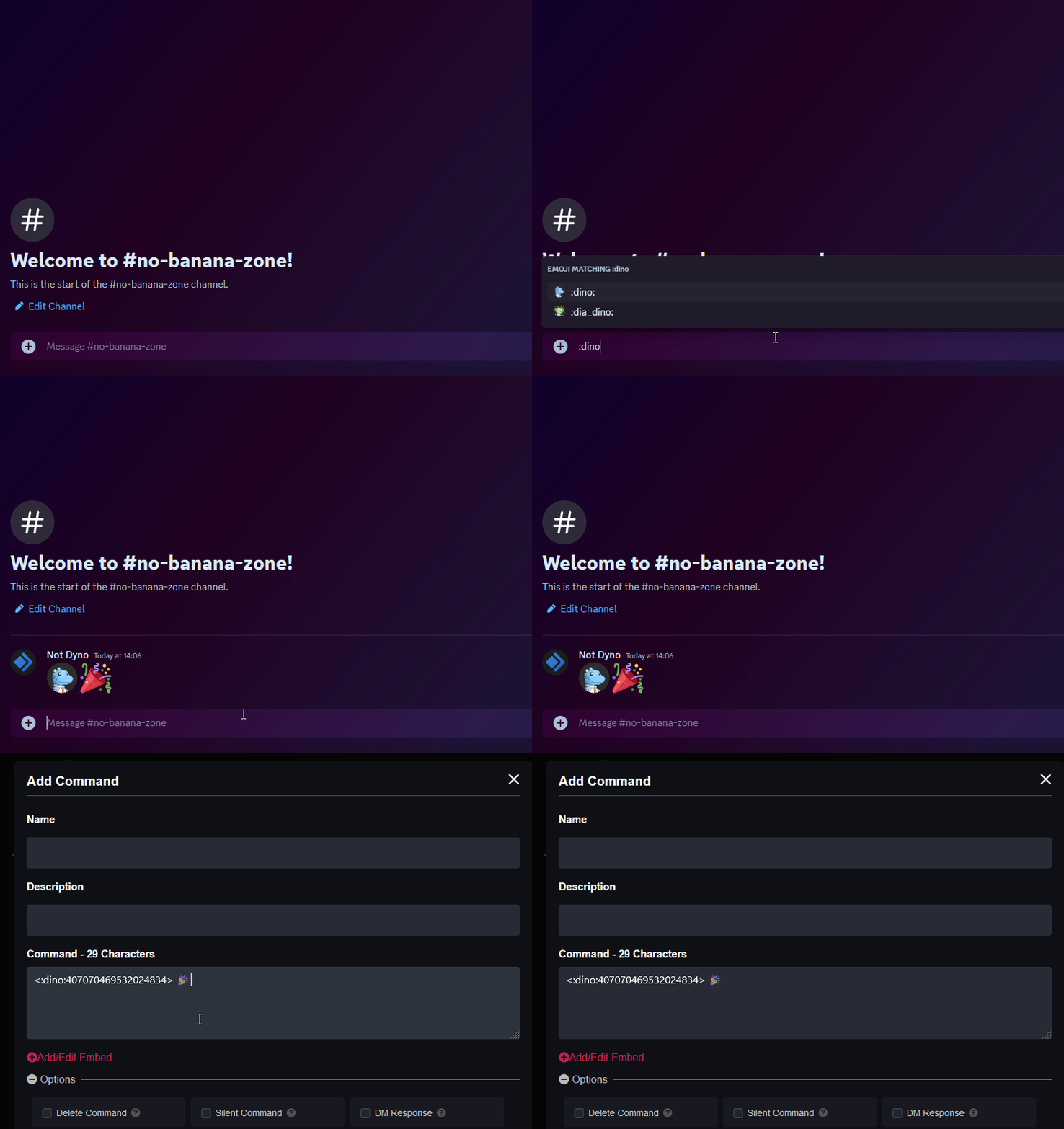
- If you’re looking to add custom emojis to your message follow this guide! Just keep in mind Dyno needs to be in the server where that emoji is from.
Due to the system Dyno uses for Auto Messages, the interval will not be perfect and may drift overtime. As such, we cannot guarantee that Dyno will post the message at a specific time each day or similar.
When you’ve set up your own Auto Message, you may want to make some small updates to it from time to time! With Dyno, you can do this by travelling back to your Auto Message dashboard (as explained in the above guide) and then you can edit or remove your message from there.
To edit your message, click on the “Edit” button next to the message which you would like to update. A pop-up will appear, you can then use this to change either the “Interval” (how often Dyno will send the message) or the “Message” (what the message will say). Make your desired changes, and then press the “Save” button.
You cannot use the edit feature to change which channel your message will get sent to. To do this, you must copy the contents of your current message, remove it, and then add it back with the new channel selected.
To delete your message, click on the “Delete” button next to the message which you would like to remove.
Warning: This is irreversable.
?diagnose automessage command and make sure the module is enabled. If it is not, run ?module automessage or enable it on the dashboard..png or .gif. An easy way to get a valid link is to upload the image to Discord, right click it (or tap and hold on mobile), and select Copy Image Link.