¶ Overview
The Message Embedder module allows you to make Dyno send a fully customised embed into a channel of your choice. These embeds are saved on the Dashboard, so you can delete or even edit them at any time!
Permissions Check
- Make sure Dyno has these permissions in your embed channel(s):
View ChannelSend MessagesEmbed LinksLimits to keep in mind:
- Non-Premium servers can have a max of 3 Message Embeds.
- Each part of the Message Embed has a character limit. Learn about those limits here.
¶ How to set up a Message Embed
- Head over to your account and select your server.
- Click on the
Modulestab. - Ensure the
Message Embeddermodule is enabled. - Click the
Settingsbutton underneath the Message Embedder module. - Click the
New Embedbutton and then type in a name for the Embed inside theNamebox. (TheNamewill be what the embed appears as on the Dashboard; it does not affect the embed itself) - Choose a channel for Dyno to send the embed to.
- You can then customise the embed however you want. Scrolling down the page will reveal a
Preview, which allows you to see what it will look like inside of your channel. - When you are done customizing the embed, you can
Save and Send,Save as Draft, orSend Only. If you choose theSend Onlyoption, the embed will not be saved on the dashboard and you will not be able to edit it.
Extra Info:
- For more information on configuring embeds, visit this page.
- While there are no variables available in Message Embedder, you can use IDs to mention users, roles, and/or channels. For more information on how to mention using IDs, visit this page.
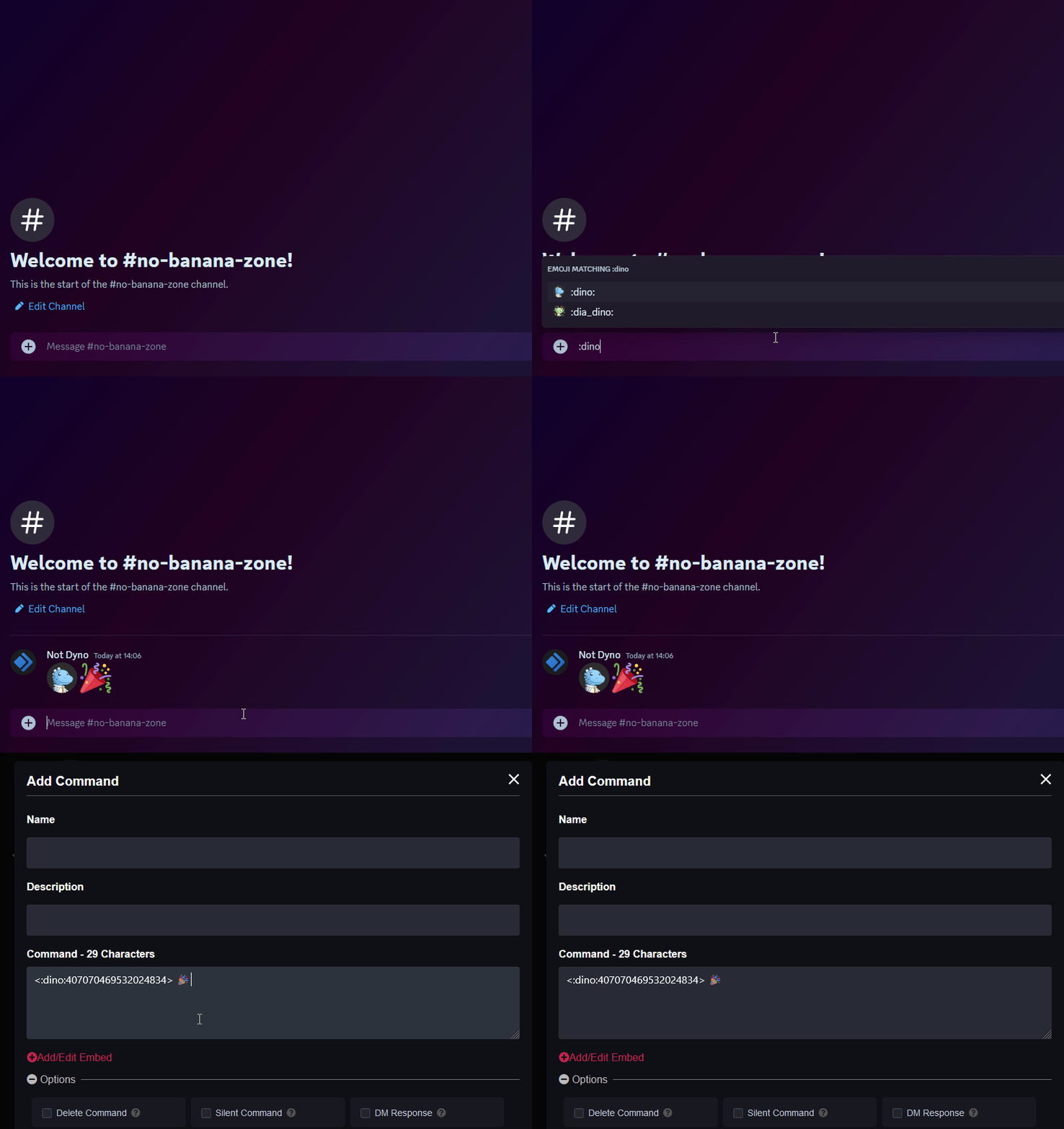
- If you’re looking to add custom emojis to your message follow this guide! Just keep in mind Dyno needs to be in the server where that emoji is from.

¶ Editing/Deleting an Embed
To edit an embed, click on the embed in your Message Embedder list. Make any changes you want to it, and then you can press the “Save & Send” button. Once you do this, Dyno will edit his own message in the channel with your changes.
To delete an embed, click on the embed in your Message Embedder list. Scroll down and click the “Delete” button. Once you do this, Dyno will remove the embed from the Message Embedder module and he will delete his own message in the channel.
Please note that if you delete Dyno’s message in the Discord channel without deleting it on the dashboard, the embed will stay on the dashboard, and once edited, it will send a new embed message.
If you’re a premium user, please keep in mind that due to a discord limitation, any existing embeds will need to be cloned in order to be editied.
¶ Cloning an Embed
The cloning feature allows you to send the same embed to several channels. To clone an embed, click on the existing embed you wish to clone on the embed list on the left. Find the “Clone” button on the bottom of the embed, and click it.
This will create a brand new embed with the same exact content as the embed you cloned. All you need to do now is select a unique name and the desired channel you want to send the embed into.
¶ Troubleshooting Steps
- Make sure Dyno has the permissions specified here.
- Make sure the module is enabled.
- If your embed includes a thumbnail or imageURL, make sure the image ends in a valid file extension such as
.pngor.gif. An easy way to get a valid link is to upload the image to Discord, right click it (or tap and hold on mobile), and selectCopy Image Linkor use an image hosting service such as imgur.