Youtube
The Youtube module allows you to subscribe to certain YouTube Channels. Once you subscribe to one, Dyno will automatically post a message into a channel of your choice whenever the youtuber goes live or uploads a new video/short.
Overview
The Youtube module allows you to subscribe to certain YouTube Channels. Once you subscribe to one, Dyno will automatically post a message into a channel of your choice whenever the youtuber goes live or uploads a new video/short.
Youtube is a Premium feature.
Click here to upgrade to Premium!
Note: Any feeds added before the module was made Premium only will still work, but cannot be re-added if removed (without having an active Premium subscription).
Permissions Check
- Make sure Dyno has the following permissions in your Kick channel(s):
View ChannelManage WebhooksSend MessagesEmbed LinksMention @everyone, @here and All Roles
How to set up Youtube
- Head over to your account and select your server.
- Click on the
Modulestab. - Find the
Youtubemodule and click theSettingsbutton underneath it. - Select the
Channel to Post, where the announcements will be made. - Enter the
Channel URLof the Youtuber you want to follow. - If you would like, you can customize the message Dyno sends by clicking the
Edit Messagebutton. A list of variables you can use is located under theVariable Referencetab. - Click the
Savebutton to add your subscription! Dyno will now post a message whenever the youtuber you selected goes live or uploads a new video.
Note: Currently if your channel has no videos and you try adding it using the
youtube.com/@handlemethod, it cannot be resolved. To fix this you must use theyoutube.com/channel/channelIDmethod, instead. If you are having trouble locating your channel URL you can also use this third-party tool to convert a YouTube URL to it's default ID.
More Info:
- This module uses webhooks. Visit this page to learn more about webhooks.
- For more information on configuring embeds, visit this page.
- You can use IDs to mention users, roles, and/or channels. For more information on how to mention using IDs, visit this page.
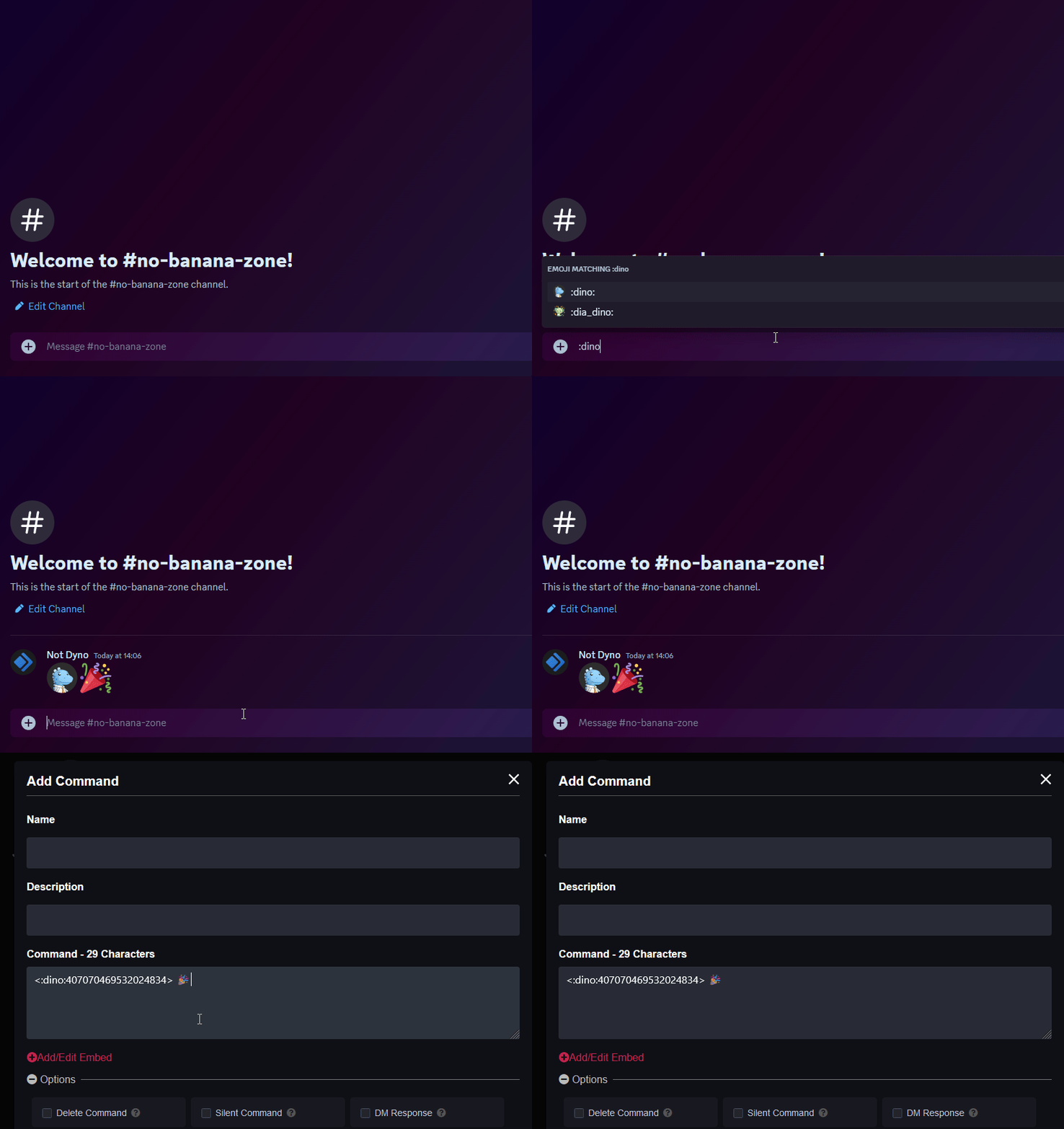
- If you're looking to add custom emojis to your message follow this guide! Just keep in mind Dyno needs to be in the server where that emoji is from.
Youtube Variables
{channel}- The channel name{channelLink}- The URL of the channel{videoTitle}- The title of the video{videoLink}- The link to the video{videoPreview}- The thumbnail of the video
Troubleshooting Steps
- Make sure Dyno has the permissions specified here.
- In the announcement channel, go to
Edit Channel > Integrationsand check if Dyno created a webhook in the channel. If not try deleting the subscription from the dashboard and re-adding it to reset it so Dyno creates a new webhook in the channel.