FAQ
Frequently Asked Questions
Frequently Asked Questions (FAQ)
Here you can find some of the most frequently asked questions from our support channels.
If you don't know how to use a command, you can run the /help command and Dyno will respond with the help text for that command. The help text will include a brief explanation and usage examples.
Command or Module not working? Try the /diagnose command and any issues with the command/module will be listed there.
Can't find the answer you're looking for? Have a feature request? Join us on the Dyno server and let us know!
General FAQ
I'm new to Dyno. Where do I start?
Welcome to Dyno! 
- If you haven't already, invite Dyno at dyno.gg/invite.
- You will be redirected to your server's dashboard. You can configure most modules and settings here as well as view logs for your server.
- To get to your server's dashboard, go to dyno.gg/account, login if necessary, and select your server from the list.
- To view a list of Dyno's commands, go to Commands.
- To view documentation for all of Dyno's features, check out the Docs.
- To watch the many visual guides on our YouTube channel, visit youtube.com/c/How2Dyno.
How can I get Dyno premium and what are its benefits?
You can purchase Dyno premium here and see its benefits here!
What is a prefix and what should I set it to?
A bot's prefix is the character(s) that all Custom Commands start with. For example, Dyno's default prefix is ?, so to run a custom command, you would type ? followed by the command name, like ?my-cc.
Important
As of October 13, 2026, Dyno's prefix commands have been removed. Prefixes only work on Custom Commands now. Read more.
What permissions does Dyno need in order to function correctly?
It is recommended that Dyno has the Administrator permission.
Removing Administrator means that not only will you need to ensure the "Dyno" role has proper permissions, you will also have to ensure that Dyno has the correct permissions for every channel it has access in to ensure commands work correctly.
If you still choose to ignore that and remove Administrator, ensure Dyno always has these permissions:
- ✔ Send Messages
- ✔ Send Messages in Threads
- ✔ Create Public Threads
- ✔ Create Private Threads
- ✔ Manage Messages
- ✔ Manage Threads
- ✔ Read Message History
- ✔ Manage Webhooks
- ✔ Embed Links
- ✔ Manage Nicknames
- ✔ Kick Members
- ✔ Ban Members
- ✔ Timeout Members
- ✔ Manage Roles
- ✔ Manage Channels
- ✔ Manage Permissions
To see the permissions that a specific module requires, head to the documentation of said module.
All or some commands are not responding. What do I do?
If Dyno is online try the following:
- First do
@Dyno prefixto make sure that you're using the correct prefix. - If Dyno does not have the
Administratorpermission, check if Dyno has theView ChannelandSend Messagespermissions, as well asEmbed Linksin that channel. - Check whether the command or module you're trying to use is enabled by doing
?diagnose [commandname], or alternatively by heading to your Server Dashboard > Commands. Then search for your command and check whether it's enabled. If disabled, you can enable them on the dashboard or by doing?command [commandname]or?module [modulename].
If none of these work or if Dyno is offline, please head over to our support server.
How do I edit role/channel permissions for commands?
Command Settings
This guide will show you how to limit certain commands/modules to specific roles or channels.
- Head to https://dyno.gg/account, login if necessary, and select your server.
- Click on the Commands tab.
- Navigate to the command/module(s) you want to limit, and click the "Settings" button.
- Choose the roles or channels you want to limit the command to in the Allowed Roles box.
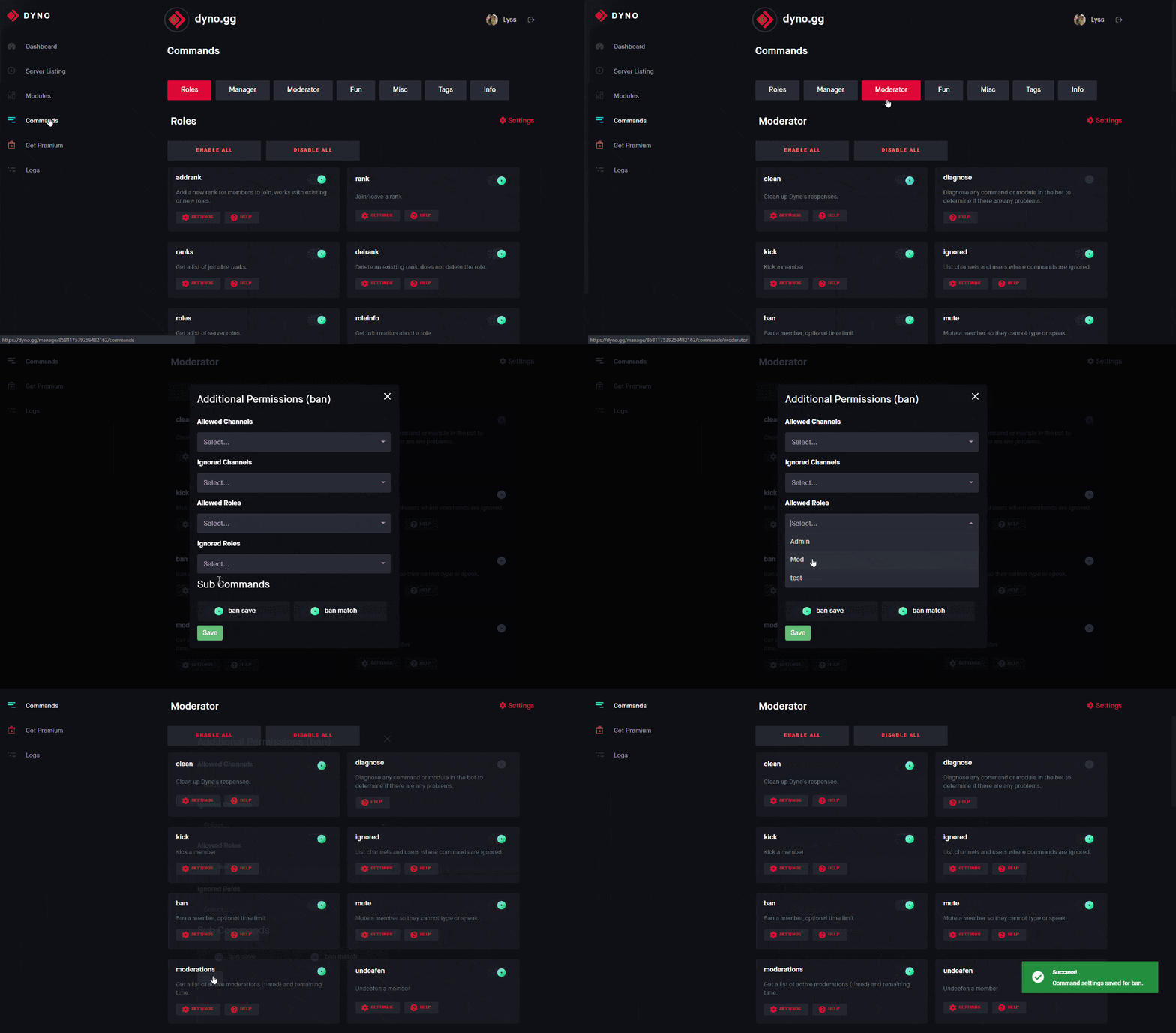
Notes:
- You only need to select either Allowed or Disabled. For example, setting allowed roles will automatically disable all other roles.
- The owner and Dyno managers will override all additional command permissions as they are always able to use all enabled commands.
How do I delete all commands when they are run?
Unfortunately, there is not an option to delete all commands automatically when they are run. However, there is an option to Delete mod commands after executed, which is located on the Moderation module of the dashboard. You can create a Custom Command to run another command and delete the trigger command, but this command has to be named something that is not already a Dyno command. For more information on creating Custom Commands, click here.
This setting/workaround doesn't affect slash commands; those cannot be made ephemeral.
Who does Dyno consider mod and admin/manager?
Admins (serverAdmin) are users who have the Administrator permission, and managers are users who have a designated Manager Role - they can use all commands and access the web dashboard.
Moderators (serverMod) are users with roles that are added using the ?addmod command or through the dashboard in the Moderation module. By default Server Moderators can access commands listed under Moderator.
Who can access the dashboard for my server?
Dyno Managers have access to the dashboard at https://dyno.gg/, can create/delete custom commands and can use all commands regardless of any other settings or special permissions.
The server owner and any user or role with the Administrator permission are always considered Dyno Managers, thus you can't remove tose roles.
If you do not wish to give a user admin perms in order to access the dashboard, you can add Manager Roles manually through the dashboard under Dashboard General Settings. They are considered Dyno Managers and can access the web dashboard.
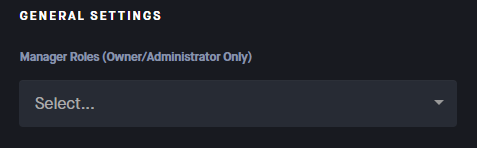
Manager Roles can only be edited by those with the Administrator permission. Only give these permissions to those you trust.
How do I mention users/roles/channels?
To mention a user, role, or channel, obtain their ID and use the syntaxes below:
- User:
<@ID> - Role:
<@&ID> - Channel:
<#ID>
Note: Some modules allow you to use variables to mention users/roles/channels. These variables will be listed on the module page of the dashboard. If any of the users, roles, or channels you mention contain special characters such as emotes or zalgo text, Dyno may not be able to mention them properly using the variables and you may have to use the ID syntax mentioned above.
Dyno won't give roles. How can I fix this?
For Dyno to be able to manage or moderate any role, he has to be VISUALLY higher then the role you want it to give or remove in the role settings screen of your Discord server. Otherwise, Dyno will not be able to manage users who have the role.
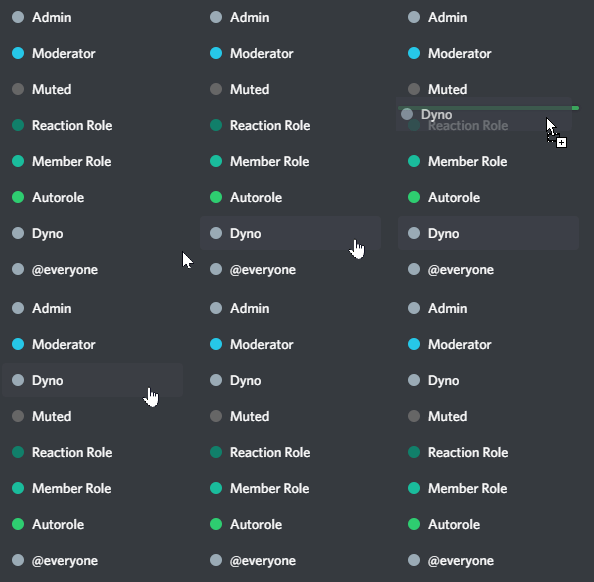
Drag the role above any roles you want it to manage, as shown above. To learn more about role hierarchy, click here.
Why can users send messages when they have the muted role/when the channel is locked?
This is due to channel permissions. Configure your channel's send message permission to be Neutral for all roles (which includes the @everyone role for muting) and Deny it for the muted role.
Why are my mods able to give themselves roles that are above them?
The ?role command is an admin/manager command by default for this reason, Dyno is the user giving the role so it can give or remove any role that is below Dyno, not the moderator performing the command. You will either need to remove the ability for moderators to use the role command, create a Custom Command to only let them give specific roles, or move Dyno's role below roles you don't want it to add/remove. To learn more about how Discord role hierarchy works, click here.
Does Dyno have an anti-nuke/anti-raid function?
To prevent normal users from spamming, using bad words, spam pinging, etc., Dyno offers the Automod module. Head here to see how to configre Automod in your server.
Dyno does not currently offer a feature to prevent Moderators or Administrators from abusing their privileges or "nuking" the server.
How do I create a verification system?
Check out these videos from our How2Dyno YouTube channel for guides on how to set up a verification system with Dyno:
How do I get Dyno to moderate/respond to pings?
Dyno offers multiple functions to assist in moderating unwanted pings in your server:
Note: Dyno only has the power of a Discord Bot Account and cannot prevent messages from being sent. With either of the options below, the user will still receive the ping.
First, obtain the ID of the user(s) whose ping you want to moderate/respond to. You will need this for both of the following options.
Deleting/Moderating the Ping
- Head to the Dashboard, login if necessary, and select your server.
- Head to the
Automodmodule. - Select
Create Ruleand give aRule Name. - Select the
Bad Wordsrule type. - Under
Banned Words (wildcard), add the ID(s) you obtained from the first step followed by a>. For example,334093318818627586>. - Under
Actions, select the actions you want Dyno to take when the user is mentioned. - If you only want this rule to affect some roles/channels, set them under the
Permissionstab. - Click
Create Ruleto finalize the Automod Rule!
Notes:
- All Automod rules will not affect Dyno Moderators and Managers.
- If you have Premium, you can select the Warn punishment and set the Custom Response under the Additional Options, by doing that you don't need to follow the rest of the steps!
Sending a Message
- Head to the Dashboard, login if necessary, and select your server.
- Head to the
Autorespondermodule. - Select
Add Response. - In the
Triggerfield, add the ID you obtained from the first step followed by a>. For example,334093318818627586>. - Select your response type and enter your response in the field below.
- If you only want this autoresponder to affect some roles/channels, set them using the
Allowed/Ignored Roles/Channelsoptions below. - Select the
Wildcardoption. This will make Dyno respond to the ping when it is located anywhere in a message. - Click
Add Responseto finalize the Autoresponder!
Can Dyno send a message when a user boosts my server?
Dyno does not currently have this functionality. However you can create an Autoresponder that responds to the discord system message when someone boosts the server. Just set just boosted the server as your trigger with Wildcard enabled.
An additional trick you can use if you don't want to have both discord's system message and Dyno's message when someone boosts, is to also use the Autodelete module to automatically delete discord's system message by using the Includes Text filter and
just boosted the serveras the text. Just keep in mind this won't work for moderators/admins.
How do I give/remove a role to/from everyone?
To add a role to everyone, use ?role all +roleID. To remove a role from everyone, use ?role all -roleID. In both cases, replace roleID with the ID of the role. If you want to cancel the process after you run the command, use ?role cancel.
Why does Dyno ask for my email when I log into the website?
If you purchase premium, your email address is required for the payment to take place; Dyno asks for your Discord linked email when you log in so that you don't need to enter it when you pay.
Why can't I purge messages older than 14 days?
Discord doesn’t allow bots to purge (bulk delete) messages that are older than 14 days old.
If you would like to completely purge a channel, you can right click on the channel and select “Clone Channel”. This will create a new channel with the exact same settings as the old. You can then delete or archive the old channel.
Is Dyno open source?
No.